
Do you ever think about your mouse settings after buying one. Because most people don’t even consider that. They buy one. Connect it with the computer to use and that’s it. Definitely the mouse will work smoothly.
But remember that mouse requirements change for playing games or working on designs. A cursor that moves too fast can be a serious problem. One that moves too slowly can be too frustrating. That’s where mouse DPI comes into the picture to rescue.
Ever heard of terms like DPI or sensitivity and eDPI? Or wondered what actually do they mean. Honestly, these terms are not very complicated. Let’s just understand them one by one together.
What Mouse DPI Actually Means
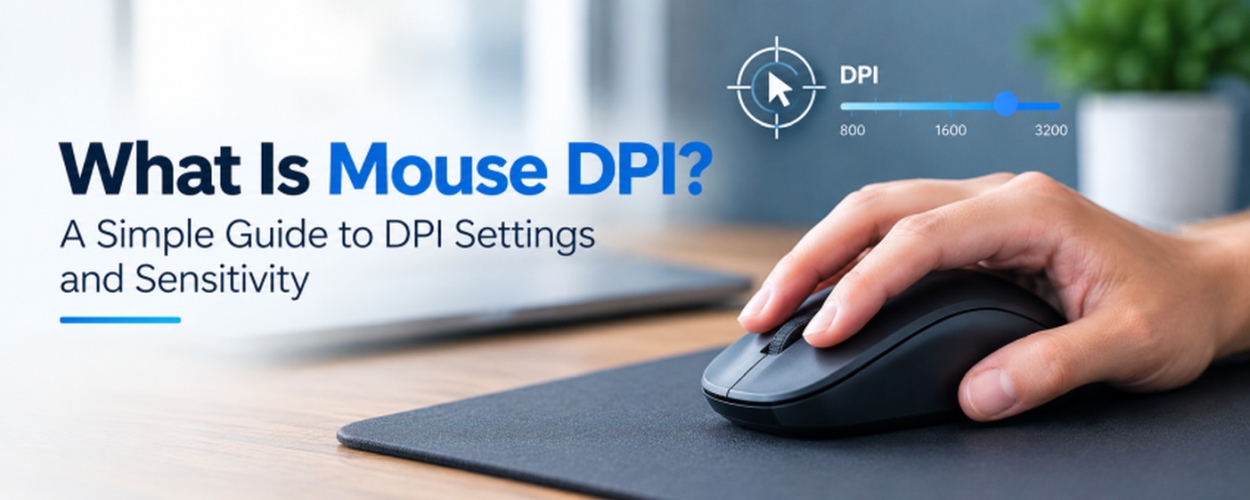
DPI can also be expanded as dots per inch. It actually means how much your cursor moves every time you move your mouse on the desk.
Say your mouse is set to 800 DPI. Now move it an inch across your desk. The sensor picks up about 800 counts. Does your cursor move 800 pixels too? Not necessarily. Because your computer settings play a part too.
You may also see the term CPI. This stands for counts per inch. Both these terms are used commonly when it comes to mouse movement.
Talking about the easy part.
Higher DPI means that a tiny mouse movement can carry your cursor across the screen. Lower DPI means you have to move your hand to cover the same distance. That is the difference.
Read More: Essential Insights Marketing Analysts Provide That Transform Business Strategies
Higher DPI is not always a good thing. Lower DPI is not always better either. It depends on what you do. What feels right, to you.
DPI vs Sensitivity- Understand What They Actually Mean
This is where a lot of people get mixed up. DPI and sensitivity feel almost the same. But clearly they are not.
DPI is connected to your mouse. Use the mouse buttons to control or the software that comes with it.
Sensitivity is actually a setting. Easily you can adjust it on your computer or within a game. It determines how much your cursor or crosshair moves every time you move your mouse.
Both settings are connected. If you change one, it’s obvious to feel a difference in the movement.
For example one player might use 800 DPI with high in-game sensitivity. Another might use 1600 DPI with lowsensitivity. The outcome will be quite the same.
So don’t just look at DPI. Sensitivity is important too.
Why Check the Real DPI
Your mouse box shows a DPI number. The app shows it too. But the real speed can be a bit off. It happens in new mice also. Just test it once. Don’t worry. For normal browsing, it does not matter much.Why not try an online mouse DPI checker for this.
The process is simple:
- Just open the tool
- Follow its instructions and
- Move your mouse over a fixed distance
- The tool will check your cursor movement and distance and use that information to estimate your DPI.
- One test is never enough. Taking the test two or three times is definitely a good idea.
What Is eDPI and How the Calculator Helps
eDPI stands for the effective DPI. It’s nothing but your Mouse DPI multiplied by your in-game sensitivity. If you have 800 DPI and your sensitivity is 0.5 in a game, then your eDPI is 400. Someone using 1600 DPI and 0.25 in that same game would also have a 400 eDPI. It means that you two have the same speed in that game.
An eDPI Calculator basically does the maths for you, and the good calculators also show you cm/360 (how much you move your mouse on your mouse pad for a full turn in game). Keep in mind that an eDPI value is only comparable for the same game, because 400 eDPI in Valorant and 400 eDPI in CS2 are never equal. Because both games have different turn rates, meaning you need to check the cm/360 value more closely when switching games.
Which DPI Setting Should You Use
You think that there is a magic number here? No, there is no fixed answer. Because everyone likes having a different speed. But you can begin with 800 to 1600 DPI. It suits most people for daily work and browsing. Using a large 4K monitor? Then you may need a little more.For FPS games like Valorant, CS2 or Apex, a lot of pro players stay between 400 and 800 DPI and adjust the rest with in-game sensitivity. If you handle design and photo editing work, a medium DPI works just fine for small and accurate movements.
Once you select a DPI, better to stick with it for some time. Do not change it again and again. Give some time to settle everything down.
Small Windows Settings That Change Everything
Your DPI can be perfect and the mouse can still feel odd. Blame your system settings. Set the pointer speed to the middle notch – 6 out of 11. Any other notch changes how far the cursor goes. Then turn off Enhance pointer precision. It is acceleration, which means a fast hand and a slow hand give different results. Gamers hate that.
Read More: Windows VPS Hosting: Opening up High Performance and Flexibility
Once these two settings are fixed, go back to the mouse DPI checker and do the test again, because now the result you get will be more accurate. After that put the same DPI with your sensitivity in the eDPI calculator and you will know exactly where your aim stands.